


Photo Recover Pro-Recover File
4.631.00 Reviews
App Specs
- Version
- 1.1.4
- Updated On
- License
- Free
- Downloads
- 100,000+
- Developer
- yaohuo
- Categories
- Productivity
- Platform
- Android
Screenshots

 Analysis by AppCompare
I treat a deleted file as a small emergency: first I want to know whether it can be found, then whether I can identify the right item before putting it back. That practical focus is why Photo Recover Pro-Recover File caught my attention. It is a free productivity app from yaohuo for finding photos, videos, and documents, and its straightforward approach makes sense when I need to check a missing file without turning the task into a technical project.
My main advice is to think of any recovery app as a chance to retrieve something, not a guarantee. The sooner I notice a deletion, the more sensible it is to stop creating new files on the device and try recovery promptly. New activity can make recovery harder on storage where deleted data may eventually be overwritten. I would also avoid installing several recovery tools in a row or saving lots of new material while I am searching; keeping activity low is a useful precaution, not a promise that a particular file will return.
What I would check before starting
I would begin with the simplest places: the phone’s recently deleted area, any gallery or file-manager trash, and a backup I already use. Those routes can be easier than scanning because they preserve the original file context and may let me restore an item directly. If the file is not there, a recovery app becomes a reasonable next step. This order also avoids spending time reviewing scan results when the image is already recoverable through the phone’s normal tools.
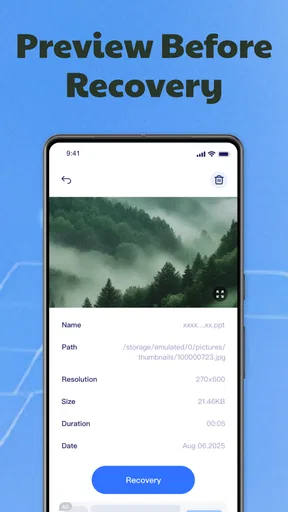
It helps to know what I am looking for before scanning. A rough date, subject, file type, or folder can make a long list of results less confusing. If I deleted a document, for example, I would search with a different goal from someone trying to rescue a camera photo: the useful result is not simply a matching thumbnail, but a file I can open and use. Previewing before restoration is valuable for exactly that reason.
First Impressions and Ease of Use
After downloading Photo Recover Pro-Recover File, I was immediately struck by its straightforward interface. No clutter, no unnecessary frills—just a clean and simple design. For someone who isn't a tech whiz, this is a huge plus. Navigating through the app is as easy as pie, and it feels like it was designed with the everyday user in mind.
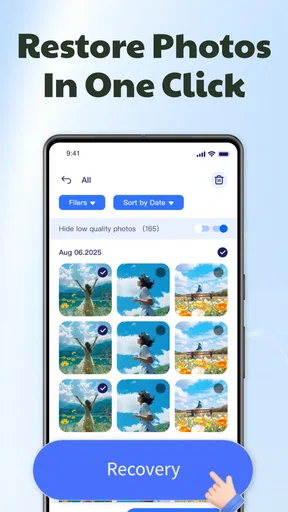
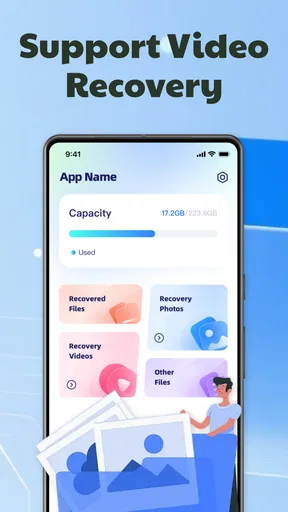
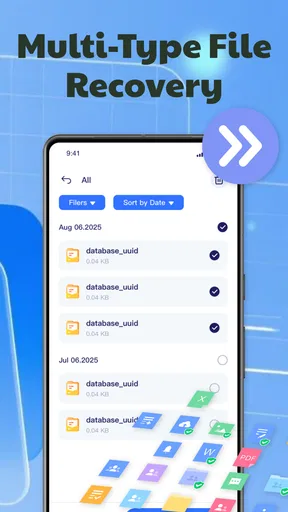
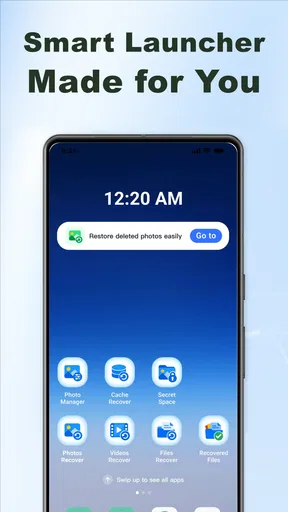
The app opens with a basic menu that lays out all the options in a clear manner. You can choose to recover photos, videos, or even other files. I focused on photos since that’s usually my Achilles' heel. It’s like the app just gets me!
That simple choice of file type is useful when I am under pressure: it gives me a starting point rather than making me think through technical storage terms. It also suggests a sensible workflow for mixed-up folders. I would handle one type at a time, preview candidates, and restore only the files I actually need. That keeps the review process manageable and makes it less likely that I will add a pile of irrelevant results back to the phone.
Worth Reading Before You Choose

EA SPORTS FC Mobile 26 Is a Bigger Football Game, but It Takes Time

Flipboard Shows What News Apps Must Do Beyond the Feed

Switching to Android Auto Means Rethinking Your Driving Routine

Google Calendar Makes a Crowded Week Easier to Manage

Ludo King Makes the Most of the Minutes Between Plans

Baby Panda World Brings Quick Play to Modern Phones, but Its Game Library Feels Busy
Features That Stand Out
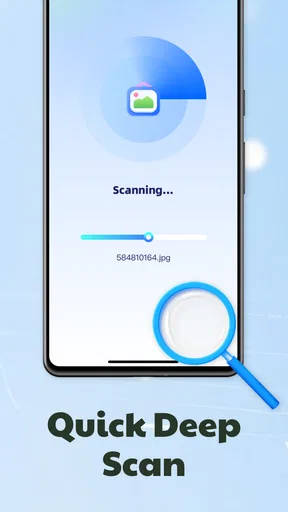
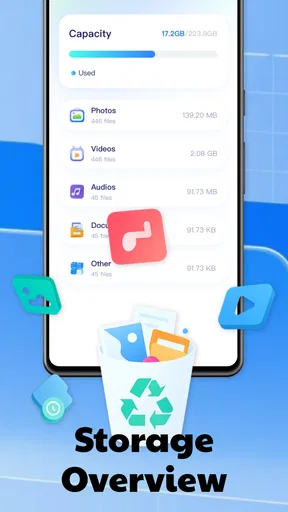
What’s really impressive about this app is its comprehensive scanning capability. It digs deep into your device storage and even external SD cards to find those lost files. The app offers both a quick scan and a deep scan. The quick scan is perfect if you've just deleted something and need it back pronto, while the deep scan takes its time to uncover files you deleted ages ago.
One of the coolest features is the preview option. Before you recover a file, you can preview it to make sure it's the right one. This is a game-changer because it saves you the hassle of recovering the wrong file and cluttering your storage even more.
Previewing also changes how I would approach uncertain results. If I am trying to find one particular family photo among several similar shots, I would not restore every plausible match at once. I would inspect candidates first, then restore the clearest match and check that it opens before continuing. For documents, I would be even more selective: a result that looks promising in a list still needs to be checked after recovery, because a recognizable filename or preview is not the same as a usable file.
A realistic use case is noticing after a weekend outing that I deleted the one photo I meant to keep. I would stop taking unnecessary pictures, check the gallery’s trash and any existing backup, then use the app to look for the missing image. If several similar frames appear, previewing them before restoring helps me choose deliberately instead of filling storage with duplicates. This is where a focused recovery tool can be more convenient than manually browsing folders, while still leaving the final decision in my hands.
Performance and Efficiency
When it comes to performance, Photo Recover Pro-Recover File doesn’t disappoint. The quick scan was, well, quick! It got the job done in minutes. The deep scan, on the other hand, took longer, but that’s to be expected given its thoroughness. The app found pictures I had forgotten about, some of which were over a year old. It felt like a walk down memory lane!
One thing I did notice is that while the app is running a deep scan, it can be a bit taxing on your phone’s battery. So, make sure you’re either plugged in or have a decent amount of charge before diving into a deep scan.
I would also plan a deep scan for a moment when I can leave the phone alone, rather than starting one just before heading out. Keeping the device charged is the obvious precaution; avoiding other storage-heavy activity at the same time is a sensible one too. If the first pass does not surface the file, I would not assume that repeating the same scan over and over will solve it. I would recheck the likely source, confirm that I chose the right file type, and decide whether the extra time is worthwhile.
People often ask whether this kind of tool can bring back anything deleted at any time. I would not count on that. Recovery depends on whether the relevant file data is still available to be found, and a scan result is not the same as a guaranteed, intact restoration. That is why I would first try the easiest recovery route, then use scanning with realistic expectations. If an irreplaceable file is involved, I would avoid experimenting casually and consider whether a trusted backup or specialist recovery service is the safer route.
Security and Privacy
In today’s world, security is a big concern, and I’m happy to report that this app takes privacy seriously. It doesn’t require unnecessary permissions, which is a green flag in my book. Your recovered files are saved directly to your device and not uploaded to any cloud server, keeping your data secure and private.
For my part, I would still treat a recovery app as a tool that needs access to the files it is meant to examine. Before granting a permission, I would read the prompt and make sure it fits the task I am asking the app to do. I would also decide where to keep restored material: saving a recovered copy somewhere easy to find, then making a separate backup once I have confirmed it opens, gives me a cleaner handoff from recovery to normal use.
When another route makes more sense
The usual alternative is not necessarily another scanning app. For a recent deletion, the phone’s built-in trash or a gallery’s recently deleted folder is often the first place I would look. For files that were already backed up, the backup service or a computer copy may be more dependable and easier to organize. A dedicated desktop recovery tool can make more sense when I need a broader file-management workflow, while professional help is a better consideration if the data is especially valuable and I cannot risk repeated attempts.
That comparison is about choosing the right route, not claiming that one option always wins. A built-in trash is convenient but only helps when the item is still there. A backup is useful only if it contains the file. A scanning app gives me another way to search, but it still cannot turn every deletion into a successful recovery. I would choose the least complicated option that matches the situation, and use this app when I want a direct on-device search across the file types it handles.
There is also a practical switching cost. If I start with this app and later move to a backup or desktop workflow, I need to keep track of which files have actually been restored and where they were saved. I would make a small checklist of the missing items and verify each recovered copy before deleting temporary results or changing tools. That matters most when I am restoring several documents or videos, because a vague memory of what I already recovered can create duplicates or leave a gap unnoticed.
Who will get the most from it
I see this as a useful option for someone who wants a simple on-device attempt at recovering an accidentally deleted photo, video, or document, especially if they are comfortable checking results one by one. It is also approachable for people who do not want to learn a complicated desktop process just to look for a single missing item. The app is free, rated for Everyone, and has a 4.6 average from around 2.8 thousand ratings, with over 100 thousand installs. It was released on September 2, 2025, and version 1.1.4 runs on Android 8.0 or later.
I would skip it if my real need is prevention rather than recovery. A regular backup habit is better for that job because it gives me another copy before anything goes wrong. I would also look elsewhere if I need a carefully managed archive, batch organization, or a guaranteed outcome for important professional files. A recovery app is most useful as a targeted attempt after a mistake, not as a replacement for storing valuable files safely in the first place.
One small habit can make a future recovery less stressful: after confirming a restored file opens, copy it to a separate safe location and check that copy too. I would not treat a successful scan as the end of the job. The real goal is having an accessible, usable file afterward, with a backup that reduces the chance of repeating the same scramble.
Final Thoughts
All in all, Photo Recover Pro-Recover File is a fantastic tool for anyone who finds themselves in a pickle after accidentally deleting important photos. Its user-friendly interface, combined with powerful scanning capabilities, makes it a must-have for anyone who values their digital memories. Just remember to keep your phone charged during those deep scans!
Whether you’re a tech newbie or a seasoned pro, this app offers something for everyone. So, next time you’re in a bind, you can rely on Photo Recover Pro-Recover File to have your back. You can find the download link on our website and see for yourself if this app is the answer to your file-recovery prayers.
My recommendation is more measured than “install it and forget about backups.” I would keep it in mind as a straightforward recovery option, try the built-in trash and existing backups first, and then use its scan and preview workflow if the file is still missing. If you want an uncomplicated way to search for a lost item, it is worth considering; if you need certainty or long-term protection, a dependable backup plan is the better foundation.
Pros
- User-friendly interface for easy navigation.
- Recovers a wide range of file types.
- Quick scan and recovery process.
- Supports cloud backup integration.
- Regular updates improve performance.
Cons
- Limited free version features.
- May require root access on some devices.
- Large files can slow down recovery.
- Occasional false positives in scan results.
- Customer support response can be slow.
FAQs for Photo Recover Pro-Recover File
What is Photo Recover Pro-Recover File, and how does it work?
Photo Recover Pro-Recover File is an app designed to help users recover deleted photos and files from their Android or iOS devices. It scans your device storage, identifying and restoring lost data. The app uses advanced algorithms to ensure a high success rate in recovering files, making it a useful tool for anyone who has accidentally deleted important photos or documents.
Is Photo Recover Pro-Recover File safe to use on my device?
Yes, Photo Recover Pro-Recover File is safe to use. It requires access permissions to scan your device storage but does not store or misuse your personal data. Always ensure you download the app from a reputable source, such as the Google Play Store or Apple App Store, to avoid any security risks.
Does Photo Recover Pro-Recover File recover all types of files?
While Photo Recover Pro-Recover File specializes in recovering photos, it can also retrieve other file types, including videos and documents. However, the recovery success may vary depending on the file type and how long ago it was deleted. For the best results, attempt to recover files as soon as possible after deletion.
Are there any limitations to the free version of Photo Recover Pro-Recover File?
Yes, the free version of Photo Recover Pro-Recover File typically has limitations, such as a cap on the number of files you can recover. To unlock full features, such as unlimited recovery and advanced scanning options, you may need to purchase the premium version of the app.
How effective is Photo Recover Pro-Recover File in recovering lost data?
Photo Recover Pro-Recover File is generally effective in recovering lost data, with many users reporting successful restoration of their deleted files. However, the effectiveness can depend on factors such as how long the files have been deleted and whether they have been overwritten by new data. Regular backups are recommended to ensure data safety.


